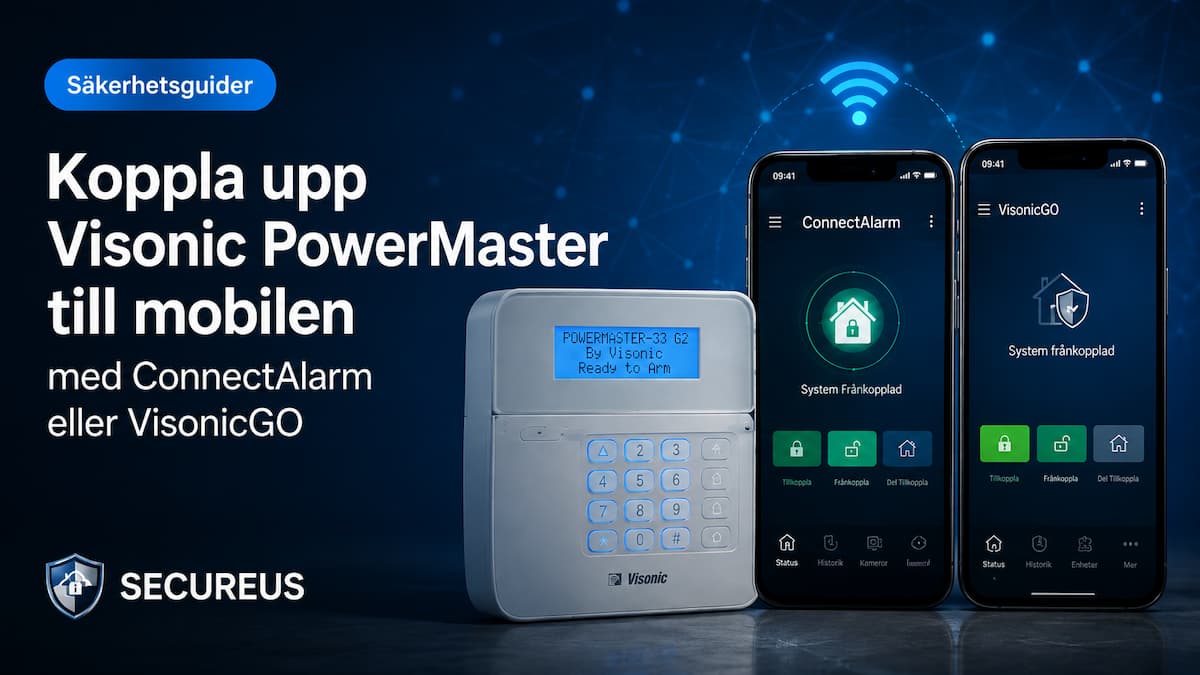
Do you have one? Visonic PowerMaster alarm and want to be able to control or monitor it on your mobile? Or does your VisonicGO app stopped working?
In many cases, you can get app control going by checking three things:
- That the alarm has a working internet connection
- That the control panel has the correct IP receiver/server settings
- That the app uses the correct server and the correct Panel ID
Both ConnectAlarm and VisonicGO can work, as long as the control panel is correctly configured and has the correct communication module.
Short solution
For many installations, this is the most important thing to check:
The control panel requires internet via IP module, PowerLink module or GSM/GPRS/4G module.
IP RECEIVER 1 / IP RCVR 1 should be:
052.058.105.181
The app's server should be:
visonic.tycomonitor.com
Use the Panel ID from the control panel, not the serial number.
If one app doesn't work, you can also try the other. Both ConnectAlarm and VisonicGO can work.
Who is the guide for?
This guide is for those of you who have, or want to supplement with, an internet connection to a Visonic PowerMaster 10 or PowerMaster 30.
The guide is relevant if you want, for example:
- See the alarm status on your mobile phone
- Alarm on and off via app
- Receive notifications for alarms and events
- Connect an older PowerMaster alarm that has not previously been connected to the app
- Get the app back up and running after VisonicGO or the server connection stops working
This is required for the app to work.
To be able to use app control, the control center needs to have a functioning communication path to the internet.
It could be, for example:
- IP module / PowerLink module, connected with network cable to router
- GSM/GPRS/4G module, depending on the control panel, module and configuration
Many PowerMaster systems already have a module installed. If the app has worked before, there is often already a communication module in the panel.
If the alarm has never been connected before, you may need to supplement it with the correct module. We have both IP module and 4G/GSM module to PowerMaster 10. Always check the product page before purchasing, as some modules require specific firmware in the control panel.
Important before you start
The menus may differ depending on the model, language and firmware version.
Example:
IP RCVR 1 in English often corresponds to IP RECEIVED 1 in Swedish.
You may need:
- Installer code for the control panel
- User code for the alarm
- Panel ID from the control panel
- Working internet connection
- ConnectAlarm or VisonicGO installed on the mobile phone
All changes are made at your own risk. If you are unsure, we always recommend that you contact an installer, especially if the alarm is connected to an alarm center or is used in an important security installation.
Incorrect settings can affect the alarm's communication.
1. Check that the alarm has internet
Start by checking that the center actually has a working internet connection.
If you use IP module / PowerLink module:
- Check that the network cable is properly connected.
- Check that the cable goes to the router or switch with internet.
- Check that the router is working
- Check that the IP module is correctly mounted
- Check that the control panel is set to broadband/IP as the reporting path
If you use GSM/GPRS/4G module:
- Check that the SIM card is active
- Check that GPRS/data package is active on the subscription
- Check that APN settings are correct
- Check that there is sufficient coverage where the control panel is located.
Without a working internet connection, the app cannot communicate with the alarm.
2. Add the correct IP receiver to the control panel
Go into the control panel's installer menu and find the communication settings.
Enter the following IP address in:
IP RCVR 1 / IP RECEIVER 1
052.058.105.181
In some cases, you can also enter the same IP address in:
IP RCVR 2 / IP RECEIVER 2
This can be useful if you want to test the new IP address while leaving a previous setting in place temporarily.
A common menu path might be, for example:
Installer Mode > 04: Communication > 3: LC Report / CS Reporting > IP RCVR 1 / IP RECEIVER 1
However, the exact menu path may differ between different control panels and versions.
3. Check reporting channel
If you are using an IP module or PowerLink module, the reporting channel should normally be set to broadband/IP.
Therefore, check that the first reporting channel is set to broadband if that is the communication path you are using.
A common menu path might be, for example:
Installer Mode > 04: Communication > 3: LC Report / CS Reporting > 1st reporting channel
Then choose broadband if you are using IP module.
If the system is still set to, for example, telephone line/PSTN, the app connection may fail or give communication errors.
4. Find Panel ID in the control panel
When connecting the app, you need the control panel's Panel ID.
This is important:
Panel ID is not the same as serial number.
In many PowerMaster panels, you can find the Panel ID via the installer menu, often under:
Installer Mode > 10: Serial Number > Panel ID
Write down the Panel ID exactly as it appears in the control panel. It will then be entered in the app.
5. Set the correct server in the app
Once the center is updated, the app should be connected to the correct server.
In the app, enter the server address:
visonic.tycomonitor.com
Then you normally fill in:
- Name of the facility, for example “Home”
- Panel ID from the control panel
- Your user code, i.e. the code you use to turn the alarm on and off
Both ConnectAlarm and VisonicGO can work, as long as the control panel is set up correctly.
6. Remove old connection if the app is not working
If the app was previously connected to another server that, for example, is no longer running, the old connection can sometimes interfere.
Then it may be easiest to:
- Update the IP receiver in the control panel
- Delete the old facility in the app
- Re-add the control panel
- Enter the server visonic.tycomonitor.com
- Enter the correct Panel ID and user code
This often solves problems where the app can no longer contact the control center.
7. Test the communication module
If you use broadband/IP, you can in many cases test the module via the control panel's diagnostic menu.
A common menu path might be, for example:
Installer Mode > Diagnostics > Broadband Module / PowerLink Module
If the control panel displays errors, check the network cable, router, module and reporting settings.
If you are using GSM/GPRS/4G, you can check GSM/GPRS diagnostics. Common errors include missing SIM card, SIM card not working, no GPRS service, or incorrect APN setting.
When the guide doesn't help
The guide doesn't always help. You may need additional help if:
- The control panel lacks an IP module or GSM/GPRS/4G module
- The SIM card has no data service or is inactive
- APN settings are missing or incorrect
- The control panel firmware does not support the module.
- You do not have an installer code.
- The alarm is locked to a previous service provider
- The alarm is connected to an alarm center and requires special handling.
- PowerLink/IP module not showing in the menu
- The control panel shows communication errors despite correct settings
If you are unsure, you should contact the installer.
Common problems
The app cannot connect to the alarm.
First, check that the control panel has internet access.
Then check that the IP receiver is:
052.058.105.181
And that the app uses the server:
visonic.tycomonitor.com
Panel ID not working
Make sure you are using Panel ID and not the serial number.
This is a common mistake.
The alarm has never been armed before.
Then you first need to ensure that the control panel has functioning communication, for example via IP module or GSM/GPRS/4G module.
The IP module is not visible in the menu
Check that the module is correctly mounted and that the control panel firmware supports the module.
Always read the product page for the current module before purchasing.
GSM/GPRS not working
Check SIM card, coverage, APN, username and password if required by the operator.
The app worked before but no longer works
It is often worth checking the server address, IP receiver and Panel ID. In some cases, the old app connection needs to be removed and re-created.
Video guide
Here is a video guide where a user shows how to connect a PowerMaster control panel from scratch. The video does not apply to all models, but the menus are usually similar:
The video also shows how to produce Panel ID, which is often one of the most common things that goes wrong when connecting to an app.
Summary
To connect a Visonic PowerMaster alarm to your mobile phone, you normally need to check the following:
- That the center has a working internet connection
- That the correct communication module is installed
- That the correct IP receiver is entered: 052.058.105.181
- That the reporting channel is set up correctly
- That the app connects to the server: visonic.tycomonitor.com
- That you use it correctly Panel ID, not the serial number
When these parts are correct, the app connection works again in many cases, both with ConnectAlarm and VisonicGO.
Do you need to supplement with a module?
If your PowerMaster alarm does not have an internet connection today, you may need to supplement it with a communication module.
We have both IP module and 4G/GSM module for PowerMaster 10, 30, 33, 360 and 360R.
Please note that compatibility may depend on the control panel firmware version and existing installation. Always read the product page carefully and contact us or an installer if you are unsure.